
Start guide
From download to your first reviewed delivery: install Blume, sign in, connect a coding agent, run real work and review the evidence.
Blume is a desktop app and a plugin for coding agents such as Claude Code and Codex. Your agent does the work in its own harness. Blume keeps the record of that work as a delivery: the outcome, the plan, the tasks, the tests, the evidence at an exact code revision, and your decision.
1. Download and sign in
- Download Blume from blume.codes for macOS, Windows or Linux.
- Open the app and sign in with Google, GitHub or your email, or choose New here? Create an account.
2. Connect an agent
Before your first delivery, the Deliveries page shows two steps. The first is Connect your agents.
- Choose Install next to Claude Code or Codex. Other agents are under More.
- When you see Blume is ready in followed by the agent’s name, start a new conversation in that agent.
3. Set up your first delivery
The second step, Set up your first delivery, gives you a prompt. Paste it into a new conversation in your project and keep Blume open.
The agent creates a demo delivery with a small plan. Your project files stay as they are. When the app says Your first delivery is ready, choose Open your delivery.
4. Run real work as a delivery
You never create a delivery in the app. You ask your agent for an outcome, and the agent opens the delivery.
- In a new conversation, describe the result you want, not the steps: “Customers can export an invoice as a PDF from the invoice page.”
- The first time in a project, the agent asks whether to track this work in Blume. Say yes.
- The agent agrees the outcome with you, writes a plan with acceptance checks and tasks, builds, and runs its checks.
When the agent needs you, it asks in the chat and in Blume. Answer in either place.
Read more: Deliveries, Small deliveries
5. Review the evidence
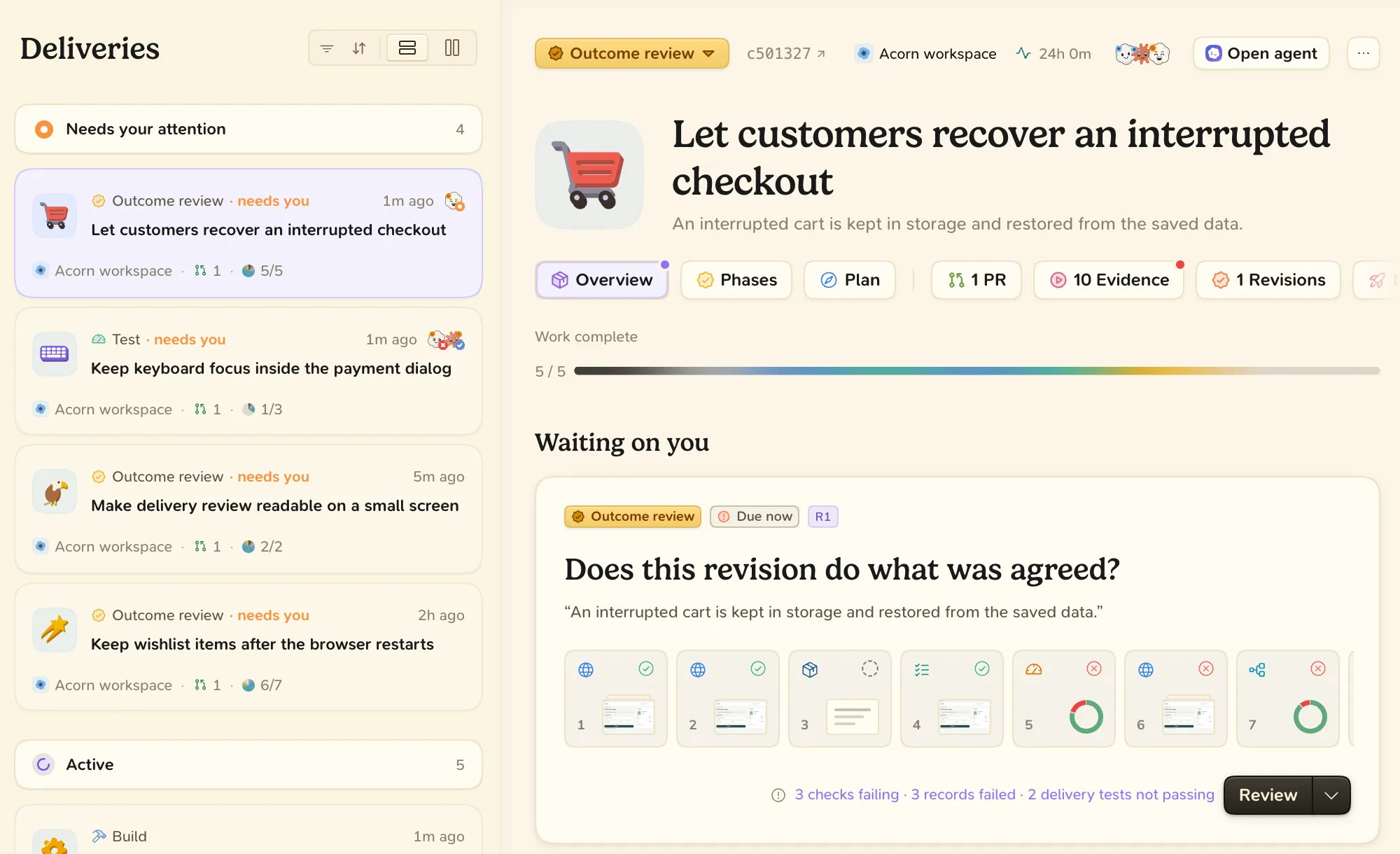
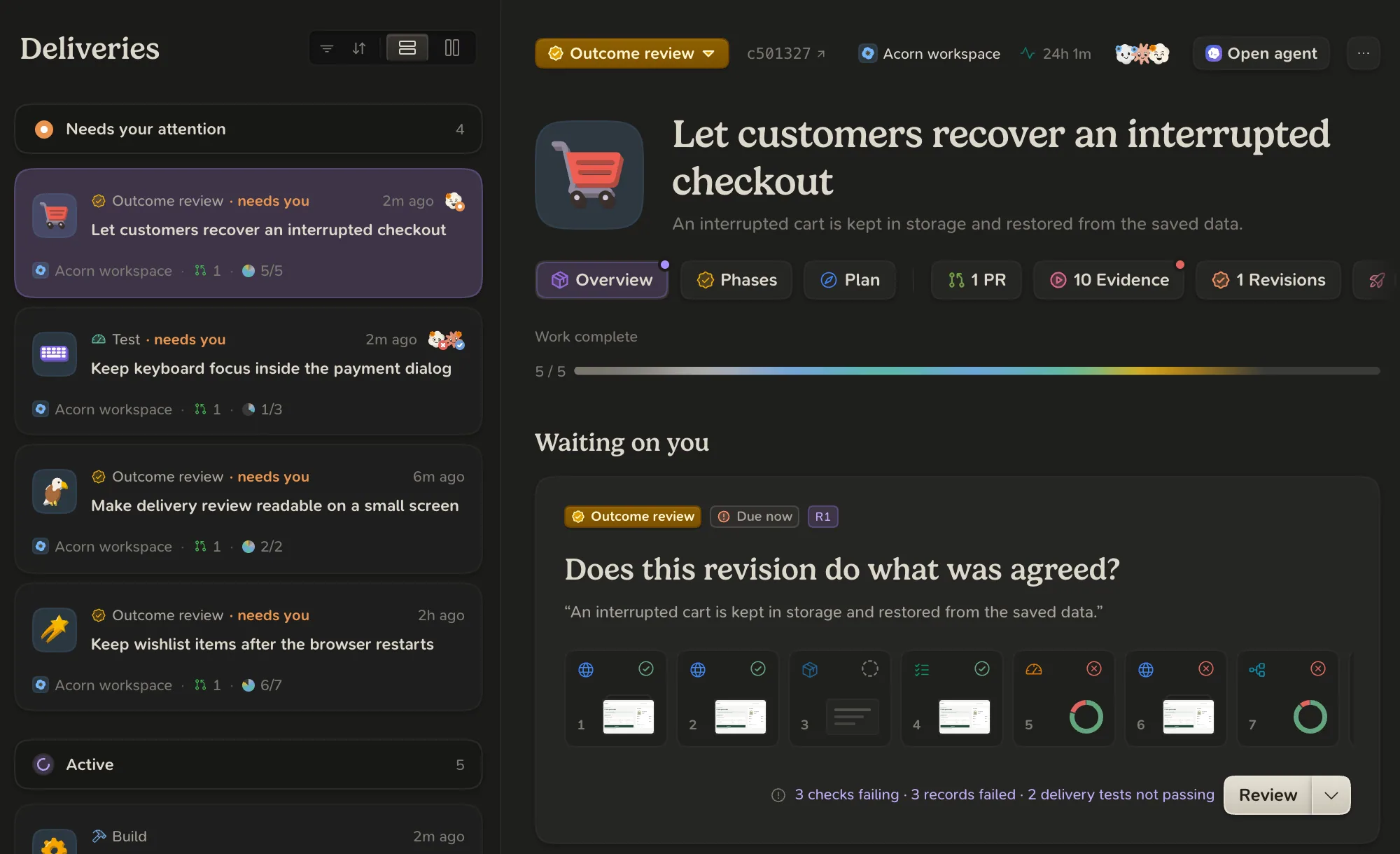
When every acceptance check passes, the agent asks for an outcome review. The Overview shows it under Waiting on you.
- Choose Review.
- Look at the test results, screenshots and changes recorded at this revision.
- Choose Approve outcome, or Request changes… to send your words back to the agent.
Your approval belongs to the revision you looked at. Approving in Blume never merges or deploys anything.
Read more: Reviews, Concepts, Method
FAQ
My agent did not open a delivery. What now?
Check that the conversation started after you installed the plugin, then ask the agent to use Blume for this work. If it still cannot find Blume, see Connect your agents.