
Conversations
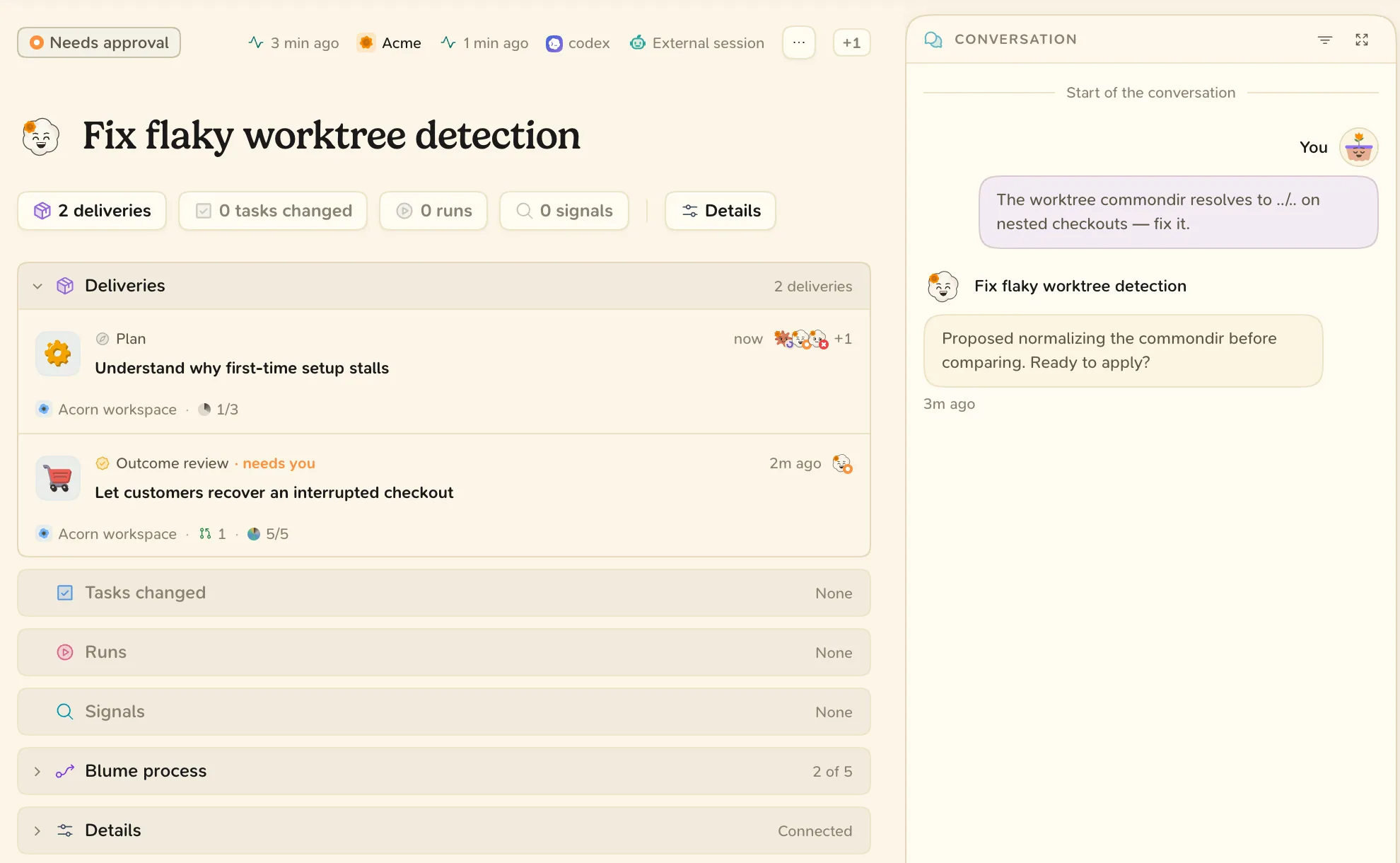
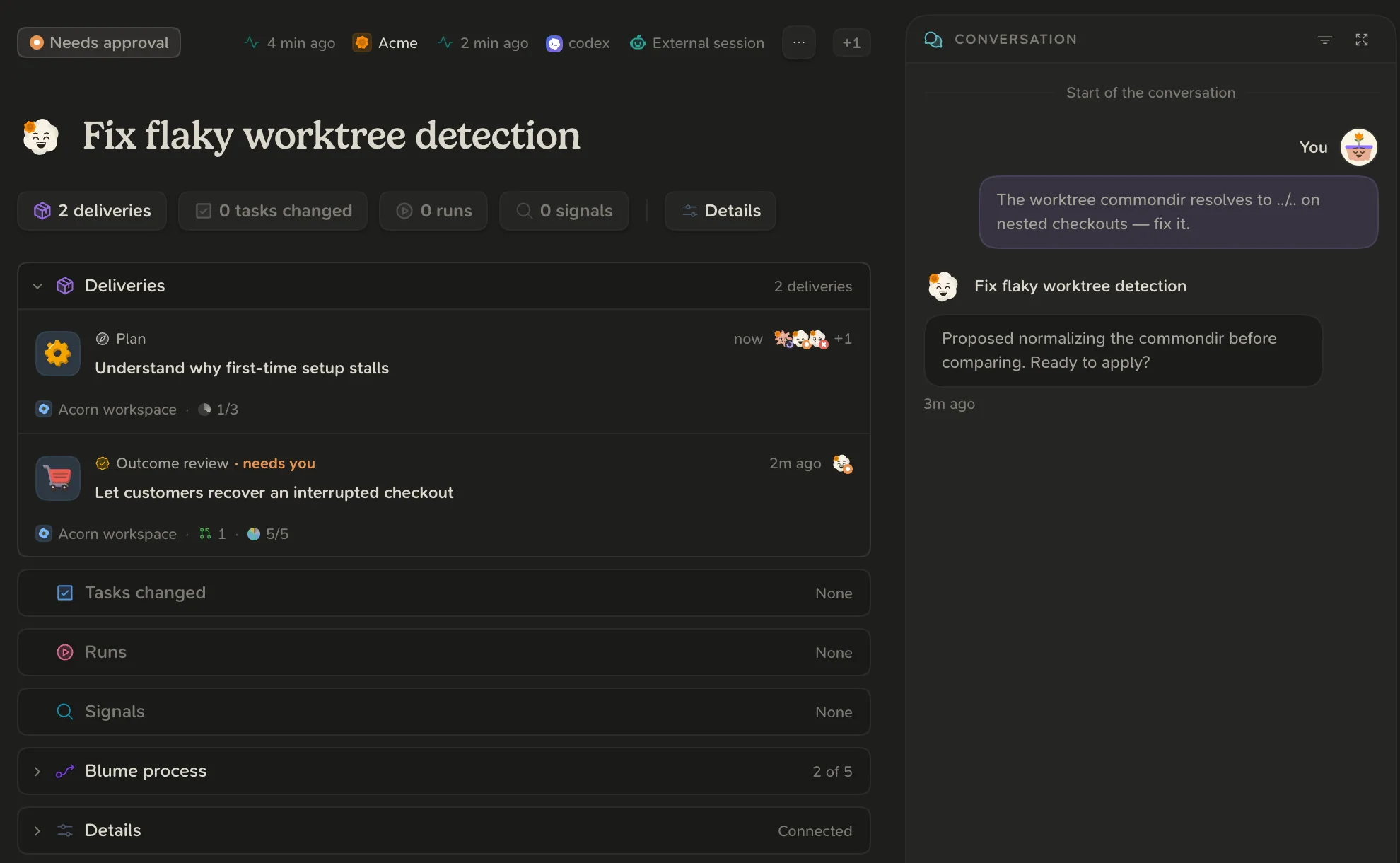
Blume reads the session logs your coding agents already write and shows each one as a conversation you can follow and search. They stay on your computer.
A conversation is one session with a coding agent: your messages, the agent’s replies and the tools it called. Blume reads these from the session logs your agents write on your computer and keeps an index there. Conversations never leave your computer.
Set up
Conversations appear as soon as Blume can read a supported agent’s logs. See Supported agents.
Two settings in Settings under Projects decide what Blume reads:
- Show: All projects (every agent conversation on this computer) or Projects that use Blume.
- Check for activity: from As it happens to Every 15 minutes. An open conversation always updates live.
Find and read
- Find. Open the Agents tab (⌘ 3) and select a conversation, or press ⌘ K and type a few words from it.
- Read. The header shows the session’s facts. Below is the transcript, with tool calls folded under the reply that made them.
- Filter. Filter the conversation shows only your messages, agent replies or tool calls.
- Search. Press ⌘ F and type at least two characters. The search covers the entire conversation.
Copy, open and message
The More menu in the page bar holds:
- Copy conversation: the path, the full transcript or only your messages.
- Open worktree / path in: Finder, VS Code or Zed, when installed.
- Continue conversation in: hands the conversation to Claude Code or Codex in a terminal inside Blume.
Continue conversation in is being rolled out and may not be in your app yet.
When the agent is connected through the Blume plugin, a message box under the transcript delivers what you write to the agent.
Hide a project’s conversations
Set the project to Skip in Settings, under Projects, then Project choices. Blume stops reading that project’s conversations and agents stop using Blume there. The transcripts on disk are kept.
FAQ
Why is a conversation missing?
Check Show in Settings under Projects. A project set to Skip is never read. Older history can also still be on its way: the sidecar footer shows how far back Blume has read.