
Applications and environments
Describe what a project ships and the steps each application takes to reach its users, so Blume can show where every delivery really is.
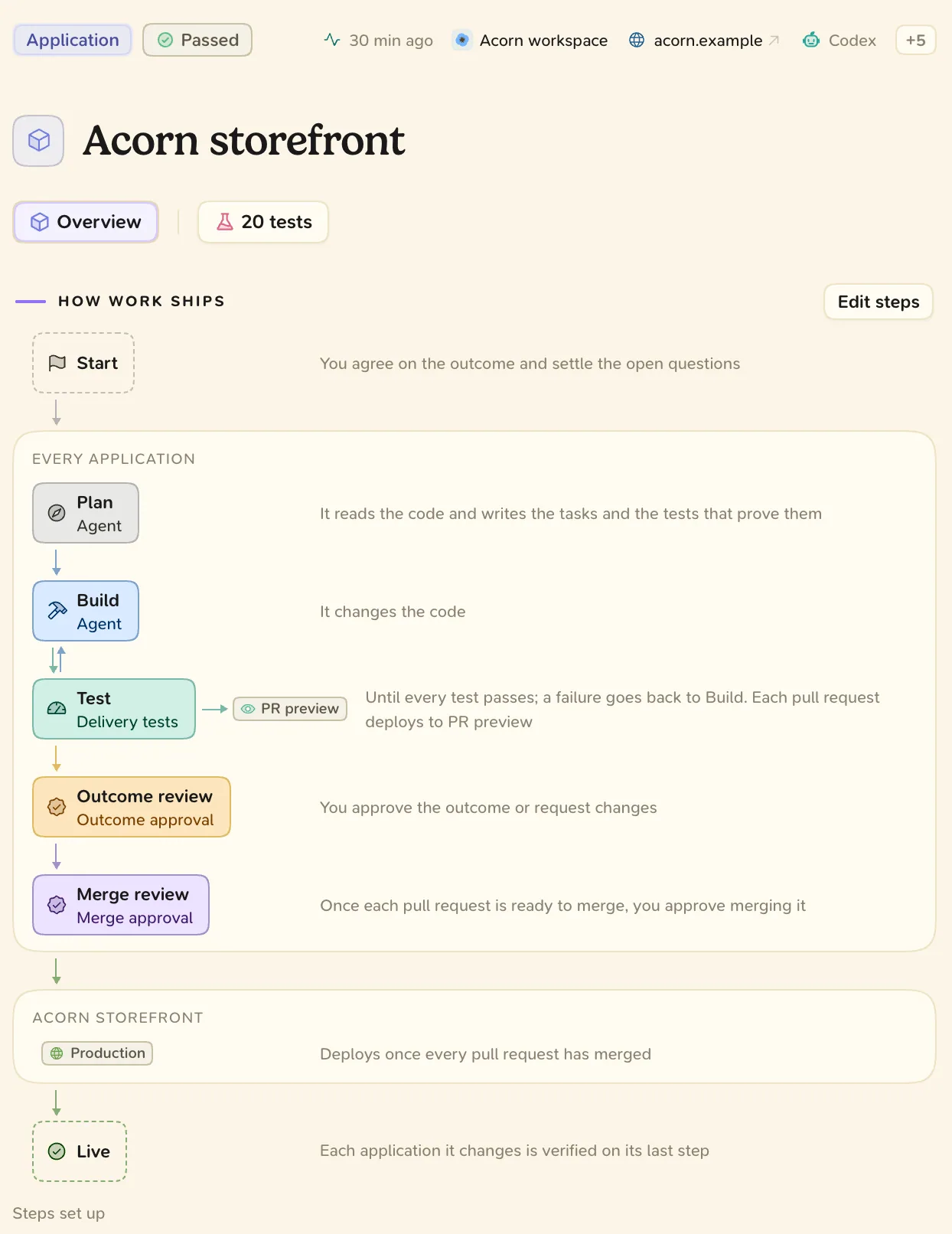
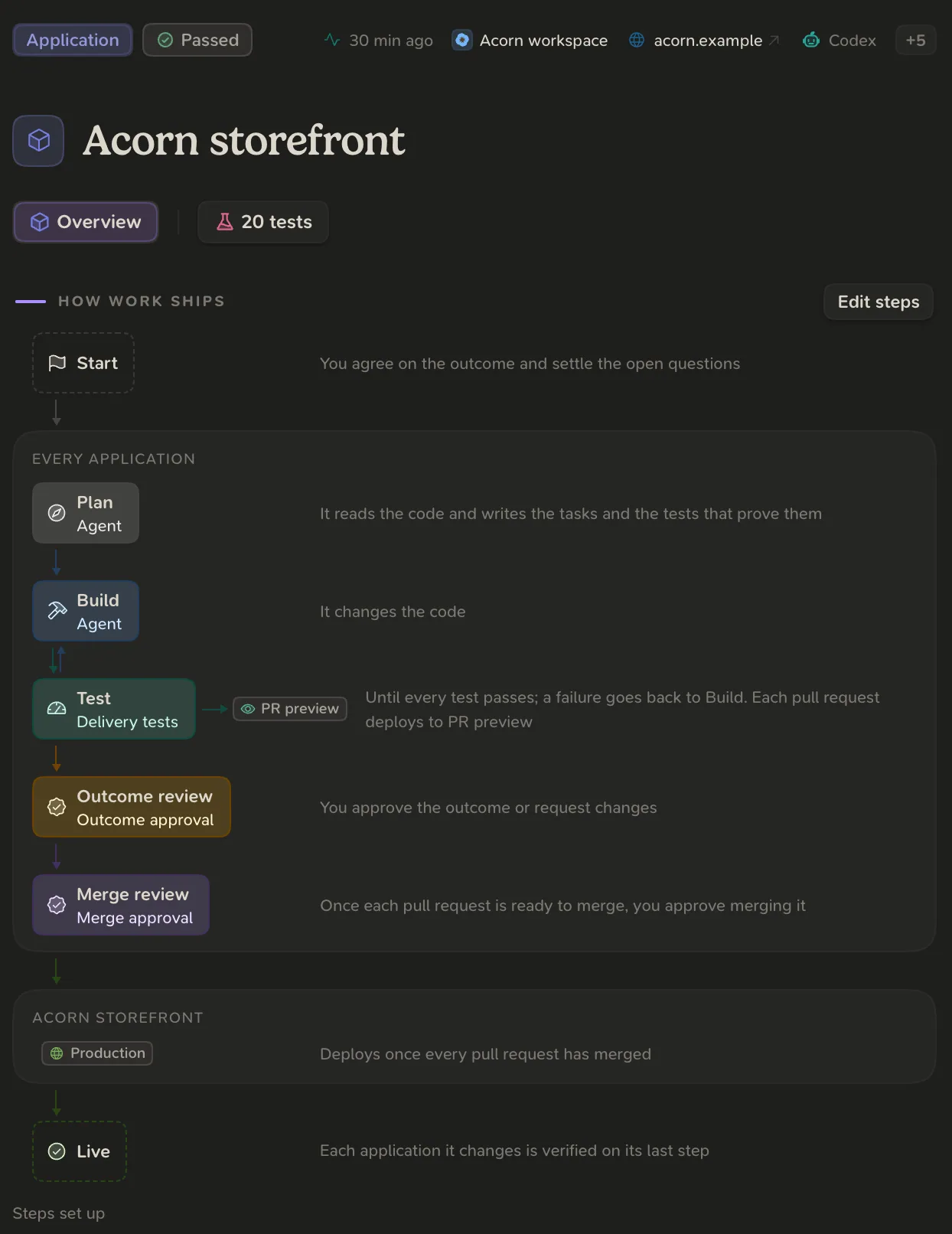
Applications are what a project ships to users: a website, an API, an admin panel, a desktop app. Environments are the release steps each application takes on its way there, in order. Each step has a kind: Local, Preview, Staging, Canary or Production. You find them on a project’s Applications tab.
Set up
We recommend letting your agent describe the project, then correcting what it wrote.
- Open the project in your agent and start a new conversation.
- Run
/blume:setup. - Open the Applications tab and read the result.
Under Setup · needs you, Blume lists what only a person can fix, such as a repository GitHub has not shared with Blume.
To add an application yourself, choose Add application on the Applications tab and type a Name.
Release steps
Until someone sets an application’s steps, Blume derives them from where its tests ran and where it was deployed. To set them:
- Open the application and choose Edit steps.
- For each step, type a name and pick its kind.
- Order the steps with the up and down arrows. Choose Add environment to add one, up to eight.
- Optionally fill in GitHub environment that means this step. By default Blume matches by name and kind.
- Tick Requires approval on a Staging, Canary or Production step that should wait for a person.
- Choose Save ladder.
- A step that requires approval waits for your release approval before code moves there. See Release.
- An application with no release steps shows “Released by the merge”.
- Preview steps apply to each pull request before it merges. They do not take an approval.
How deliveries move along the steps
Blume moves a delivery from what it observes: GitHub Deployments, test results, and what the agent reports. A delivery is Done once every application it changes is verified on its last step.
A deployment Blume cannot place appears under Deployments without an application. Choose Assign to… and pick the application.