
The sidecar
Blume is one window in two sizes. Keep it narrow beside your editor, and expand it to the full app when you need to read, review or decide.
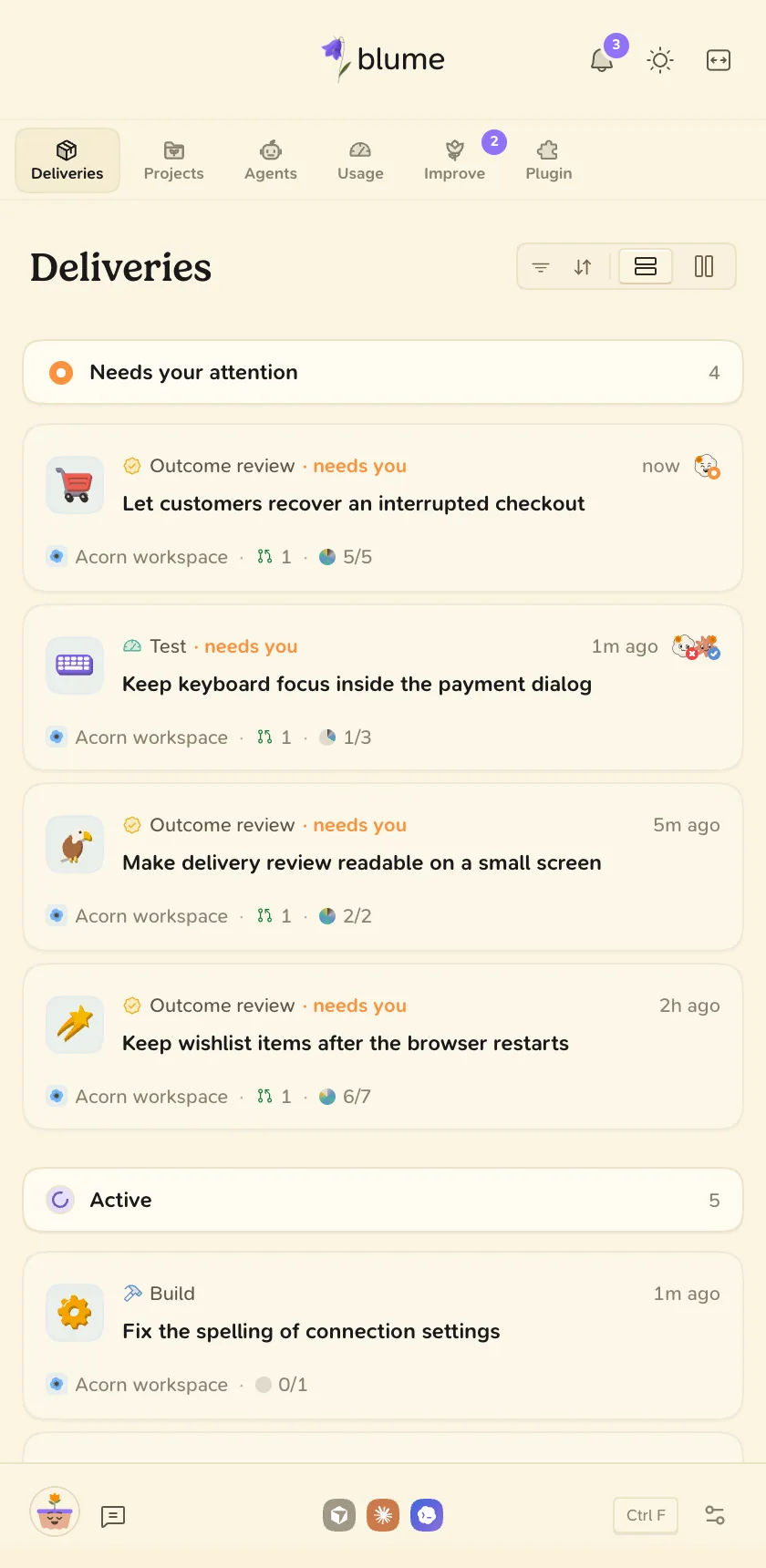
The sidecar is Blume as a narrow window that sits next to your editor or terminal. It shows what your agents are doing and what is waiting for you. When you need room, the same window grows into the full app, with the same pages and data.
What the sidecar shows
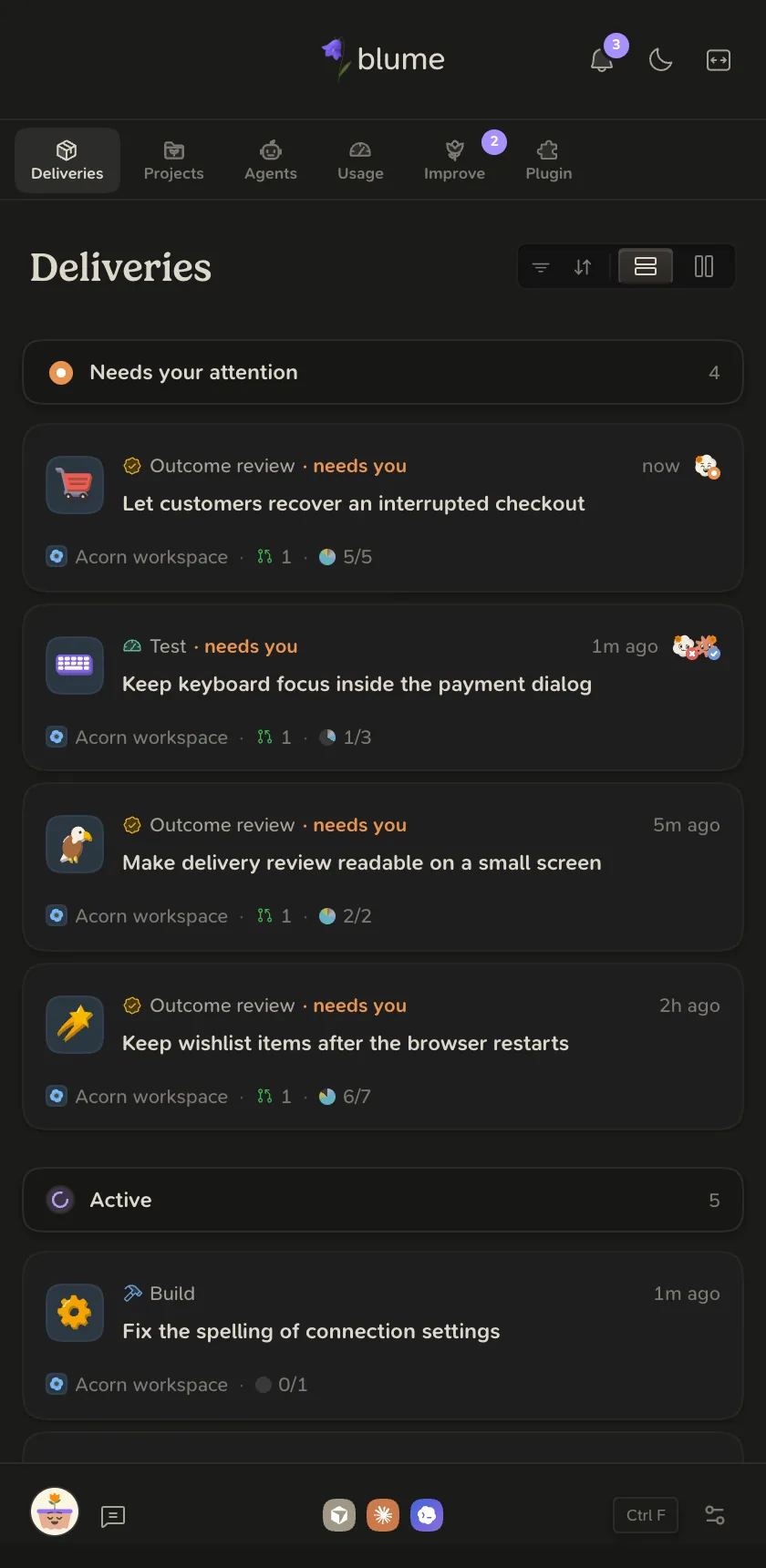
- The title bar. The Blume logo, the notification bell, the light and dark toggle, and the expand button.
- The section tabs. Deliveries, Projects, Agents, Usage, Improve and Plugin.
- The page. One column at a time. Choosing an item opens it over the list, with a back arrow.
- The footer. Your account, Feedback, a tile for each coding agent on this computer, and Settings.
Expand to the full app
Select Expand to full app in the title bar, or press ⇧ ⌘ E. Select Return to sidecar, or press the shortcut again, to go back. You can also drag the window edge: wider than about 1,200 pixels shows the full app.
Move around
| Action | Shortcut |
|---|---|
| Go to Deliveries, Projects, Agents, Usage, Improve, Plugin | ⌘ 1 to ⌘ 6 |
| Back and forward | ⌘ [ and ⌘ ] |
| Open Settings | ⌘ , |
| Search everything | ⌘ K |
| Expand or compact the window | ⇧ ⌘ E |
On Windows and Linux, use Ctrl in place of ⌘.
Also in the window
- Notifications. The bell shows a count of what needs you. Open it to go to a notification, mark it read or done, or mute it.
- The menu bar item. On macOS, your flower in the menu bar can show agent counters and usage gauges. Choose what it shows in Settings under Menu Bar.
- Terminals. An agent you start or continue from Blume opens in a terminal inside the window. Minimize it and the session keeps running in a dock.
When Blume is offline
The title bar shows Offline, retrying and Blume reconnects by itself. Conversations on your computer stay readable. Deliveries and the other cloud pages need the connection.