
Release
How a merged delivery moves along each application's release steps until it is live, and when a delivery is Done.
Release is the phase after the merge. The delivery follows each application it changes along its steps to users, such as Canary and then Production. When every application is live and checked, the delivery is Done.
Blume does not deploy. Your pipeline or your agent deploys. Blume records approvals, follows the deploy and shows the checks.
Set up
- Open the project and choose the Applications tab.
- Open an application and choose Edit steps.
- Name each step, pick its kind and put the steps in order.
- Tick Requires approval on each step that should wait for a person. We recommend it on steps that reach real users.
- Choose Save ladder.
See Applications and environments.
Follow a release
Open the delivery’s Release tab. Under What ships, each application has its steps as a ladder.
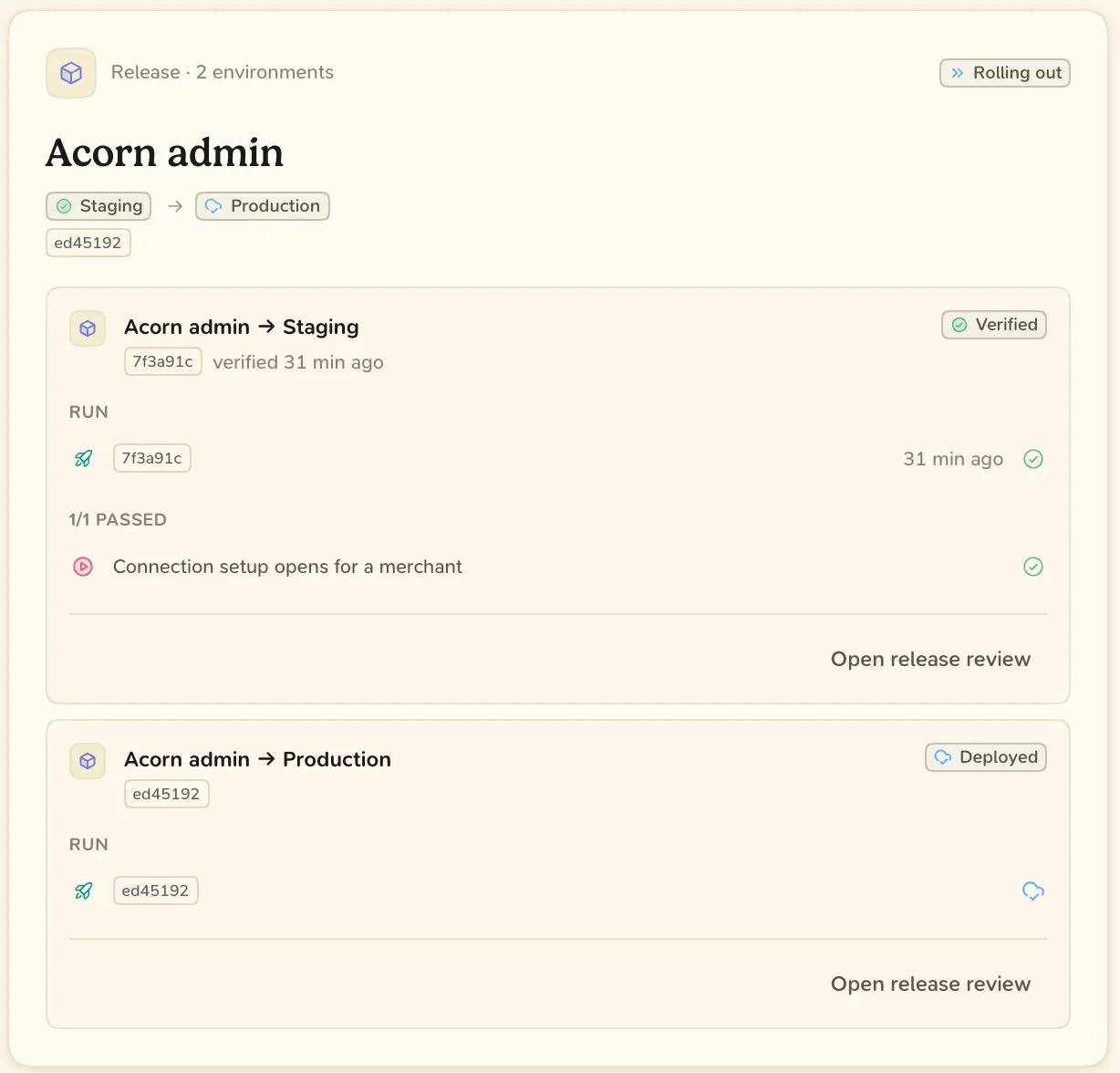
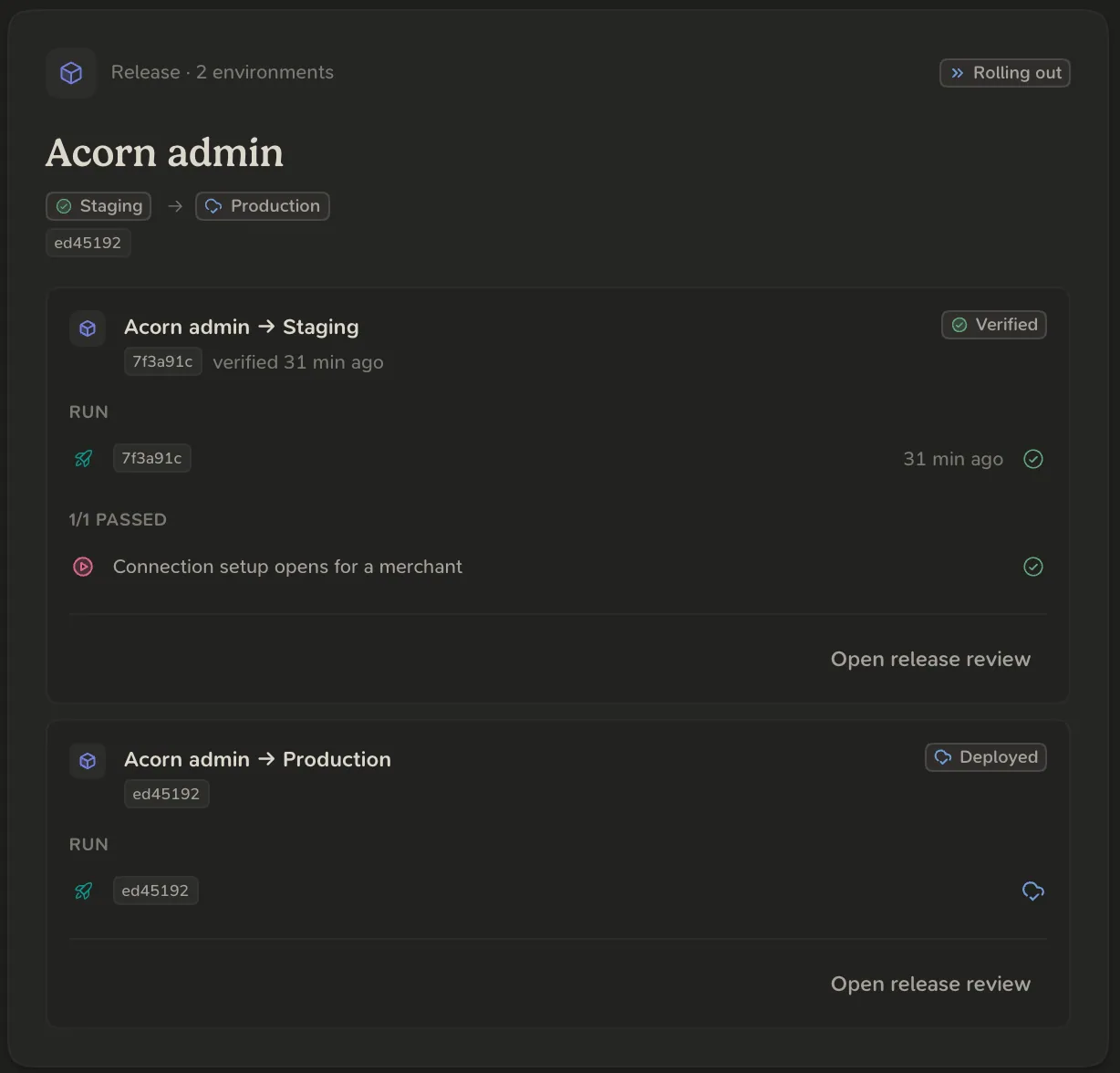
| A step reads | Meaning |
|---|---|
| Not released yet | The code has not gone to this step |
| Deploying | A deploy to this step is running |
| Deployed, not checked yet | The code is there, and no check of it has passed there |
| Verified | The code is there and a check of it passed |
| Failed | The deploy to this step failed |
| Waiting for your approval | The step requires approval and has none for this code |
| Approved, not deployed yet | You approved, and the deploy has not happened yet |
| Changes requested | You sent the release back |
Release review
When a step that requires approval is next, the agent asks for a release review.
- Open the delivery. The review is under Waiting on you on the Overview.
- Choose Review release. Read the brief, then the tabs: Pipeline, Release step and Earlier step.
- Read “Same code?”. It says whether the commit live on the earlier step is the one going out.
- Choose Approve release (A), or Request changes (C).
Approving covers that application, that step and that commit only. Approving Canary does not approve Production.
Done
A delivery is Done when every application it changes is live on its last step and verified there. A delivery that ships nothing to users is Done when its pull requests are merged.