
Sign in
Everyone signs in to Blume. Use Google, GitHub or an email and password, then manage your account from the Account page.
Blume asks you to sign in the first time it opens. Your account owns a workspace, where your deliveries, tests and improvements are kept. Conversations stay on your computer whether you are signed in or not.
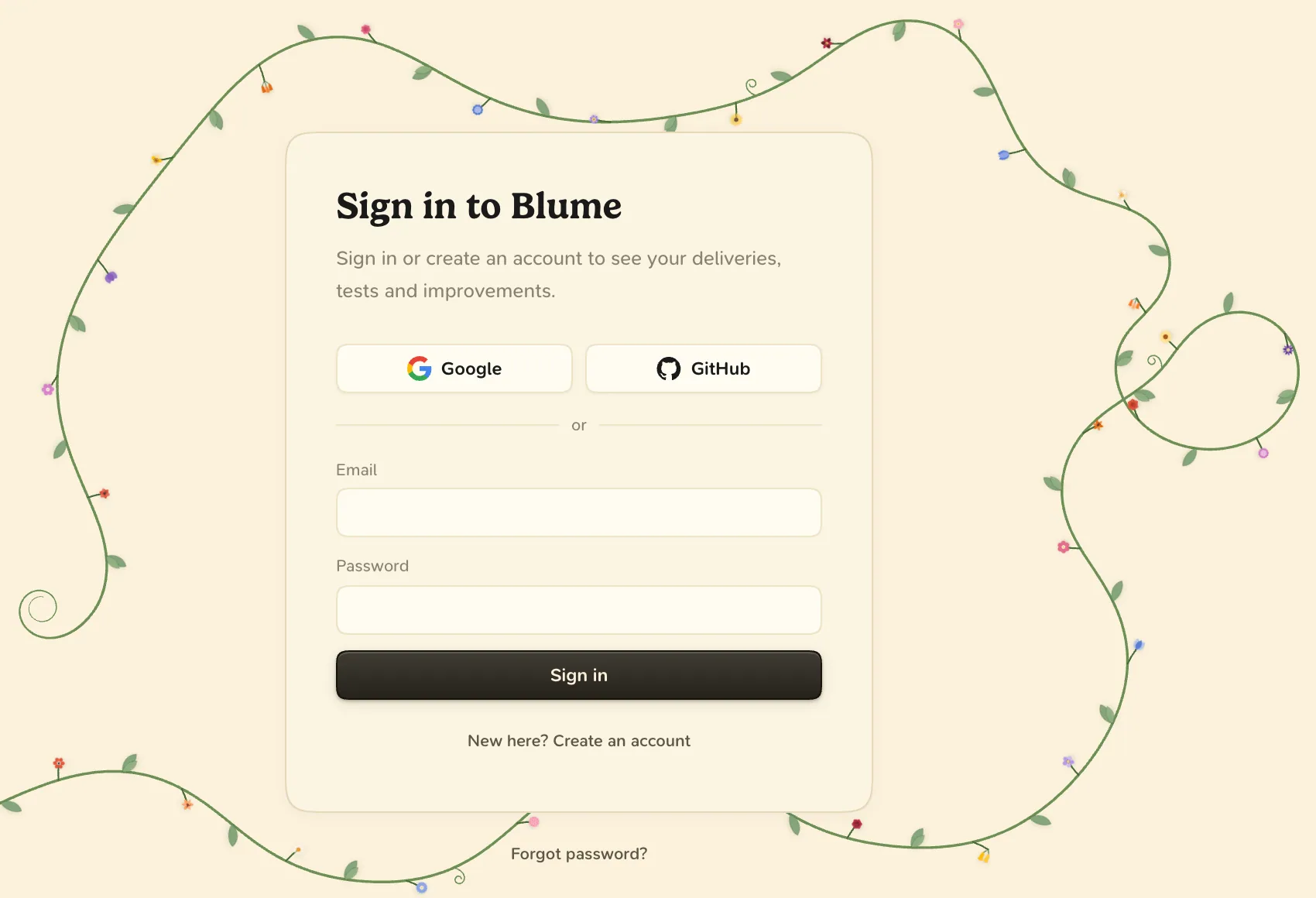
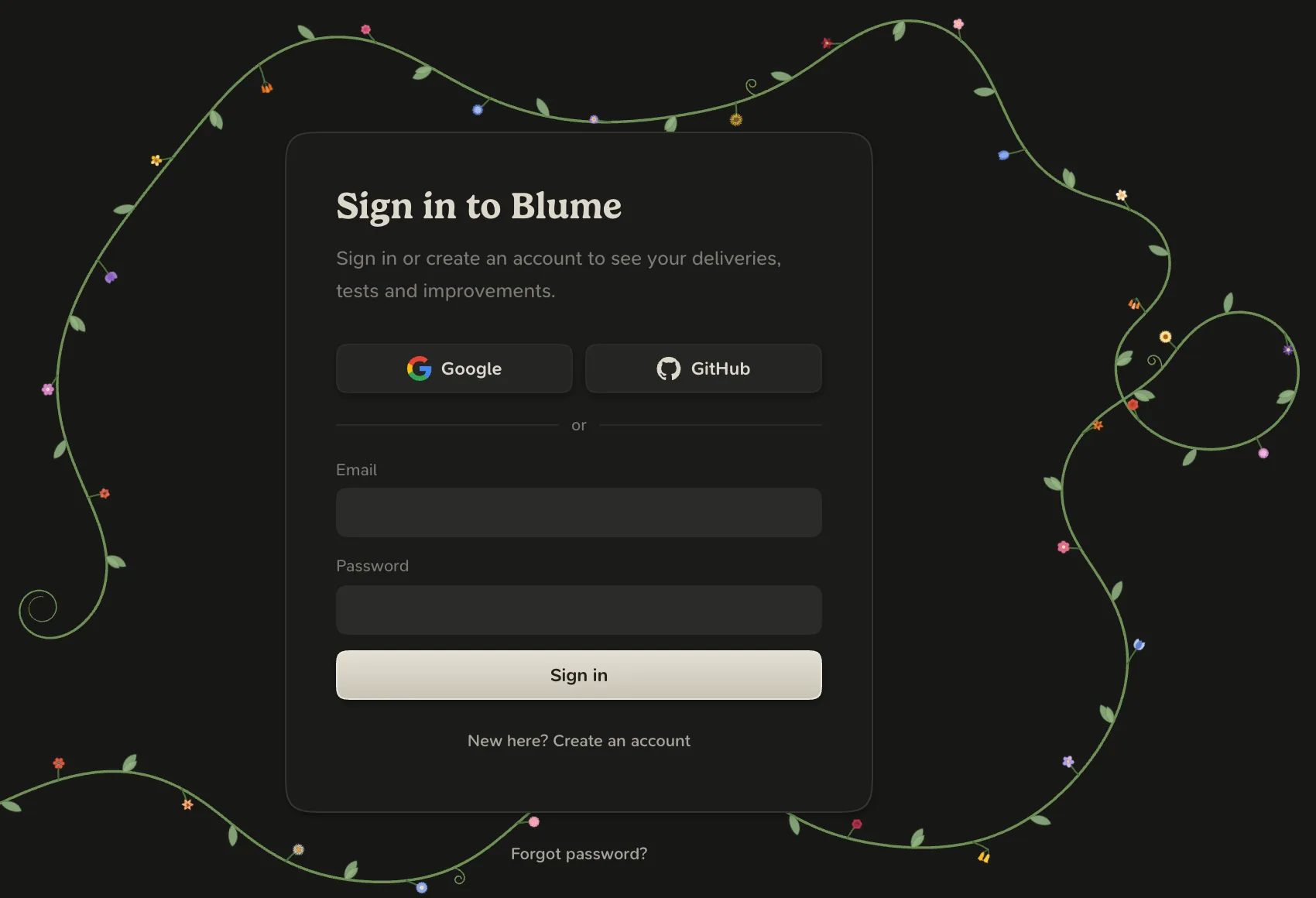
Sign in or create an account
- Open Blume. The page Sign in to Blume appears.
- Choose Google or GitHub. Your browser opens to finish the sign-in. Return to Blume when it is done.
- Or enter your email and password and choose Sign in.
To create an account with email, choose New here? Create an account, enter your name, email and a password, then choose Create account. A password has 10 to 128 characters.
To reset your password, choose Forgot password?, enter your email and choose Send reset link. Open the link in the email and choose a new password.
Signing in to Blume with GitHub is separate from connecting GitHub repositories. To let Blume read pull requests and checks, see GitHub.
Your account
Open the Account page from your avatar: in the sidecar footer, or at the foot of the rail in the full app.
| To | Do this |
|---|---|
| Change your name | On Profile, edit Name. |
| Switch workspace | Use Workspaces. See Workspaces and teams. |
| See signed-in apps and sessions | Open Devices. Each has Sign out. |
| Change your password | On Security, choose Change password. This signs out your other devices. |
| Sign out of this app | Open the header’s menu and choose Sign out. |
| Sign out everywhere else | On Security, use Sign out other sessions. |
| Delete your account | On Security, choose Delete account and confirm by typing your email, and your password if the account has one. This cannot be undone. |
An account that signs in through Google or GitHub has no password.
When you are offline
Blume keeps you signed in and shows Offline, retrying in the title bar.