
Connect your agents
Add the Blume plugin to a coding agent from the app, see what a connected agent does, and check that the connection works.
An agent is connected when the Blume plugin is installed in its harness. From then on, every new conversation in that harness can open deliveries, keep their plan and tasks current, record evidence and ask you for a review. You connect an agent once per computer.
Install the plugin
Open the Plugin page.
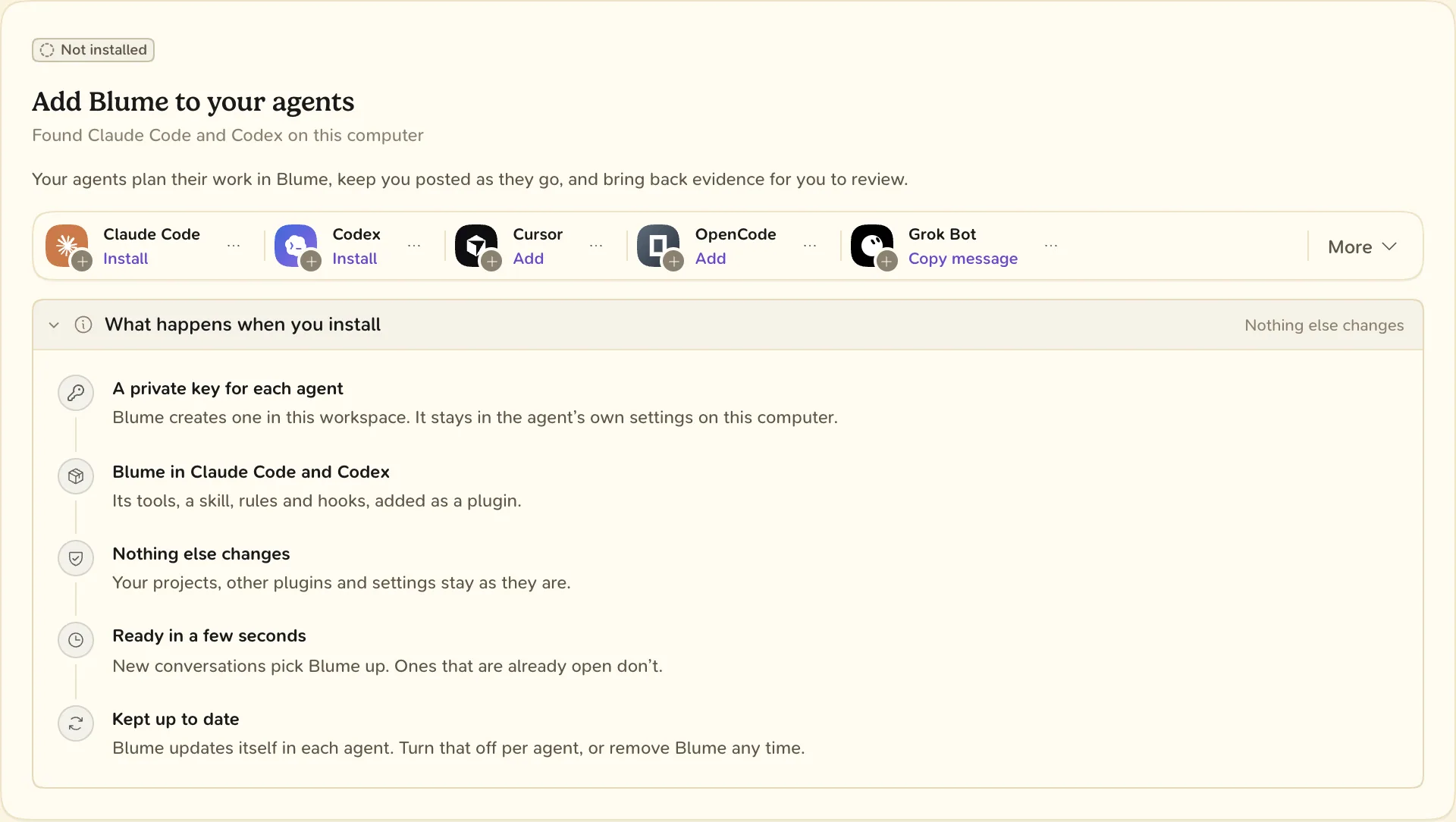
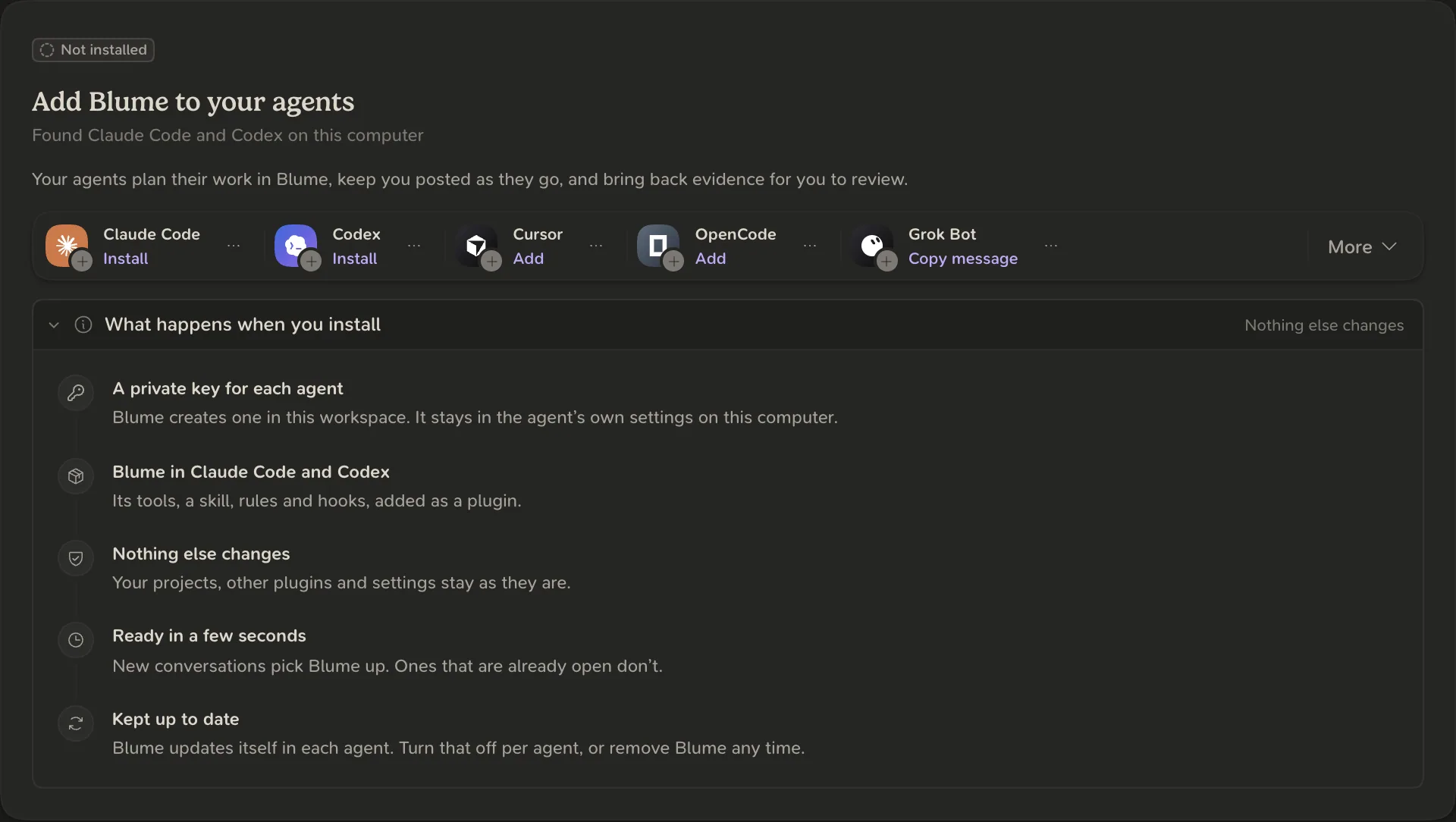
- Choose Install next to the agent. For an agent that is not listed, open More.
- When the card says Blume is ready in followed by the agent’s name, start a new conversation in that agent. Open conversations do not pick Blume up.
Installing creates a private key for the agent and adds Blume’s tools, skill, rules and hooks. Nothing else on your computer changes.
- No agent found: install Claude Code or Codex, then choose Check again.
- Install failed: choose Try again.
- The app cannot reach the agent’s computer: open the agent’s menu, choose Copy install command and run it there. Treat the command like a password.
See Supported agents for the full list.
What a connected agent does
- Sets up the project in a folder Blume has not seen.
- Asks once per project whether to track the work. What you say in the conversation always wins.
- Finds a matching delivery or opens one.
- Keeps the plan and tasks true, runs its own checks and records evidence.
- Asks you for answers and approvals. Only you approve.
Check that it works
Start a new conversation in one of your projects and ask for a change. The conversation appears under Agents, and its delivery under Deliveries.
The Plugin page’s header shows the status:
| Status | Meaning |
|---|---|
| In use | A conversation has used Blume. |
| Waiting for a conversation | Installed. Start a new conversation. |
| Update available | Choose Update next to the agent. |
| Install unfinished | Choose Try again next to the agent. |
| Not set up | Blume is not in any agent yet. |
If an agent shows Reconnect, Blume no longer accepts its key. Choose Reconnect to give it a new one.
To remove Blume, open the agent’s menu on the Plugin page and choose Remove Blume. Your deliveries stay.